
Integrations
Boldgrid Integrations
Add premium widgets to Boldgrid — reviews, chat, social feeds & more. No coding required.
Install steps
- Pick a widget in /widgets, click Customize, then click Save & Get Code to copy the embed snippet.
- In Boldgrid, add an HTML/Code/Embed block where you want the widget.
- Paste the embed code and publish/update your site.
- If your platform strips
<script>tags, embed the iframe fallback/embed/<your-widget-id>instead.
Notes
- Some platforms don't execute scripts in editor previews — publish to a staging/live URL to verify.
- Prefer the HTML embed (script) when possible for best performance and zero-layout-shift rendering.
- If you run into issues, start with /help/install-and-embed/embed-basics/embed-troubleshooting.
Step 1: Build a widget and copy the embed code
Before you touch Boldgrid, make sure your widget is configured and published in GizmoSauce.
1) Choose a widget
Start at /widgets and pick the widget you want visitors to see on your site. A few common examples:
- Google Reviews for instant social proof
- WhatsApp Chat for one-tap conversations
- Instagram / TikTok / YouTube feeds for fresh content
- Countdown Timer for launches and promos
2) Customize in the editor
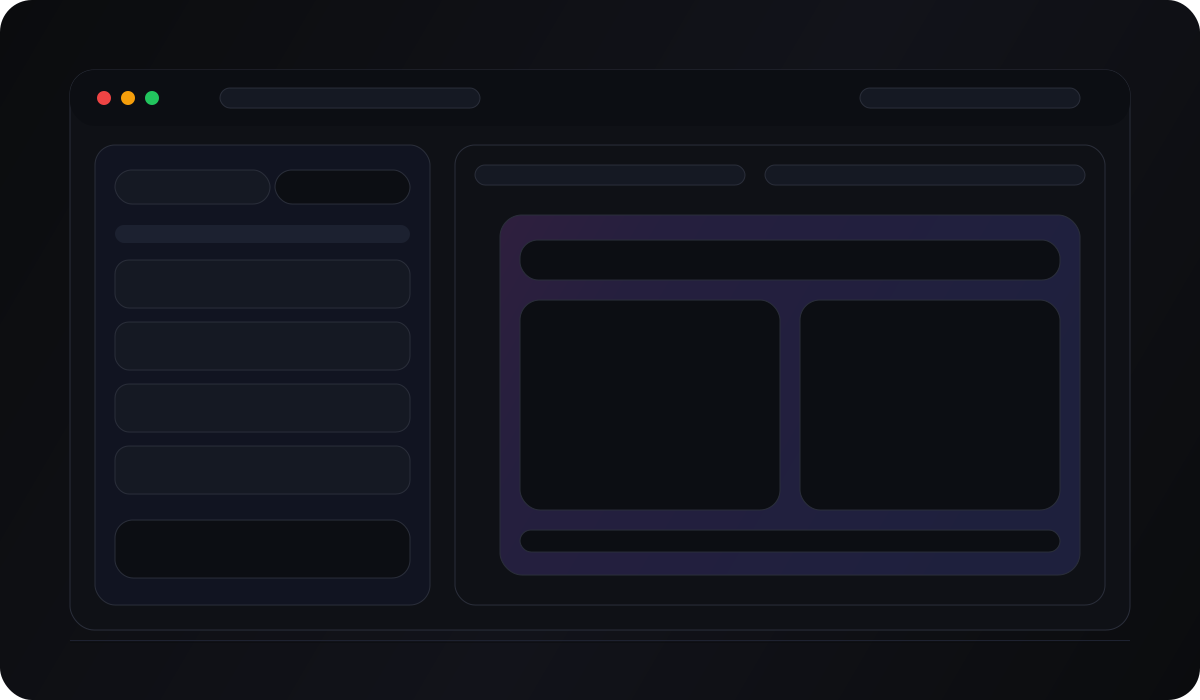
Click Customize to open the editor (for example: /get-widget/google-reviews). The editor is split into:
- Content: what the widget shows (sources, text, items)
- Layout: grid/list/cards, columns, spacing, aspect ratio
- Design: colors, typography, radius, shadows
3) Save & get code
When you’re ready, click Save & Get Code. GizmoSauce publishes your configuration and gives you an embed snippet.
Tip: If you will embed multiple GizmoSauce widgets on the same page, you usually only need one loader script. Adding the loader multiple times can cause extra requests or visible flicker.
If you’re stuck at any step, the Help Center has the full workflow: /help.
Step 2: Paste the code into Boldgrid
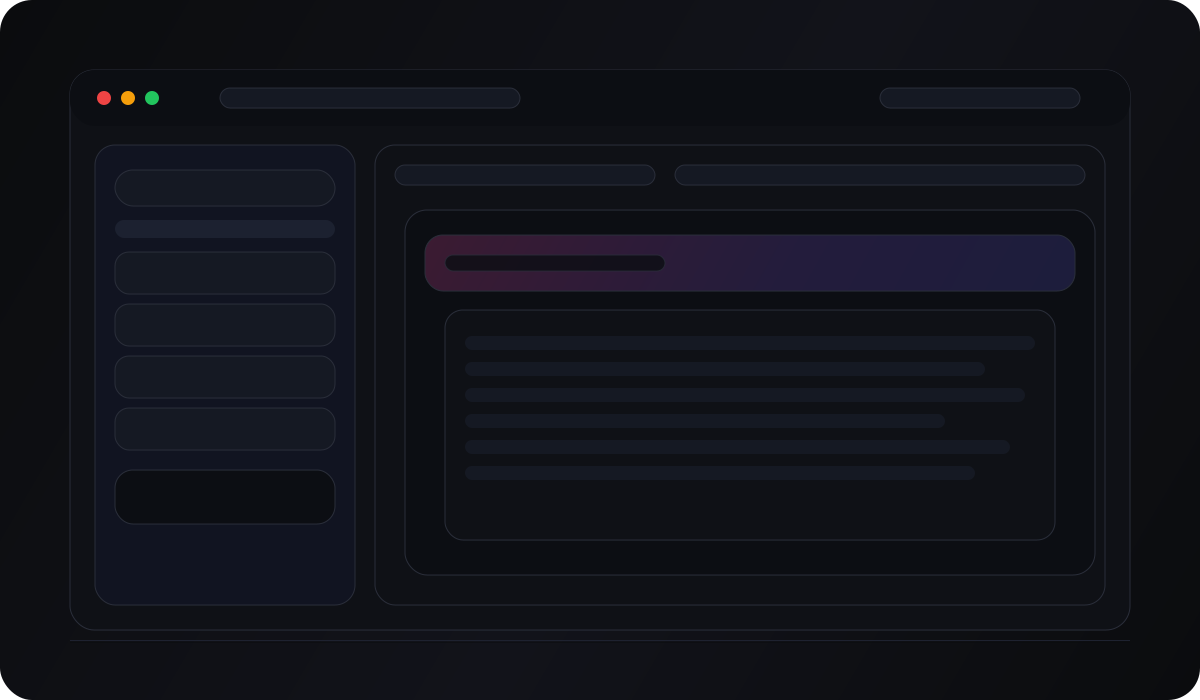
Boldgrid websites differ, but the embedding idea is always the same: you need a place that accepts HTML (and ideally script tags).
Where to look in your builder
Depending on the platform, the embed element may be called:
- Embed, HTML, Custom HTML, Code block, Custom code, or Custom Liquid
- A Widget/Section that accepts code
- A Header/Footer injection area for site-wide widgets
Page-level vs site-wide widgets
- Inline widgets (reviews grids, galleries, forms, calendars) usually belong inside a page section.
- Floating widgets (chat launchers, some popups, announcement bars) are often best placed site-wide so they appear across your whole site.
If your platform provides both options, use:
- Page embed blocks for widgets that are specific to one page.
- Global header/footer injection for widgets you want everywhere.
Important: preview vs live
Many platforms do not execute custom scripts inside the editor preview for security reasons. If you paste the code and “nothing happens”, publish to a staging or live URL and test there.
If your platform blocks scripts entirely, use the iframe fallback route /embed/{widget-id} and embed it as an iframe instead of a script. This is less flexible, but it’s the most compatible option across strict builders.
Step 3: Verify, troubleshoot, and launch
After publishing, validate your widget in a real browser on desktop and mobile.
A fast verification checklist
- Hard refresh the page (Cmd+Shift+R / Ctrl+Shift+R) or try an incognito window.
- Confirm you pasted the snippet on the correct page and section.
- Check that you did not paste the loader multiple times.
- If you use a performance/caching plugin, purge cache.
Common issues (and fixes)
1) The widget shows in preview but not on live
- Some builders sandbox previews differently. Always test on the published URL.
2) The widget doesn’t show at all
- The platform may strip script tags.
- Use the iframe fallback route /embed/{widget-id}.
3) Flicker or “double render”
- This is almost always caused by duplicate loader scripts.
- Keep only one loader per page.
4) Styling conflicts
- GizmoSauce embeds are style-isolated, but some themes apply global transitions/animations that can cause mount flicker.
- If you control the theme, avoid global transitions applied to every element (for example, “all elements transition”).
Get help
If you still can’t get it live, we can help quickly if you include:
- The page URL where you embedded
- Which Boldgrid plan/editor you use (and whether it’s a preview or live URL)
- A screenshot of where you pasted the snippet
Contact support here: /support.
Need a hand?
Share a staging URL and we'll verify styling, z-index, and responsiveness for you.