
Store Locator Widget for Website: Search, Nearest Locations, and Maps
Build a store locator widget that’s fast and easy to use: location import, search + filters, geolocation sorting, and optional maps.
What a store locator should do (the checklist)
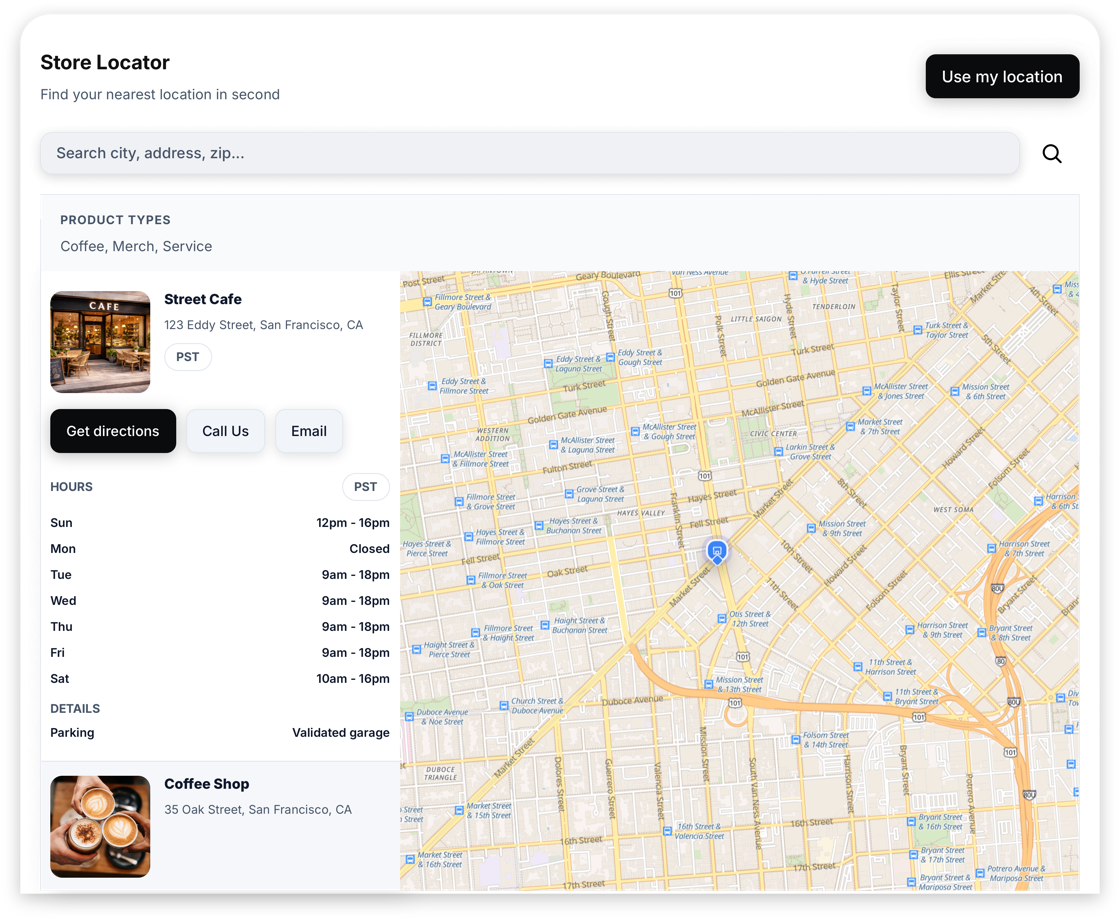
A good store locator helps visitors answer one question fast: where should I go?
At minimum, it should support:
- Search by city/address/zip
- Optional filters (tags, product types, amenities)
- A clear “Get directions” link
- Mobile-friendly layout
If you want “nearest store” behavior, add Use my location (geolocation sorting).
Step-by-step: build it in GizmoSauce and embed it
If you want a fast, reliable way to ship a store locator widget for website, this is the “no surprises” workflow.
1) Pick a widget and open the editor
Start in /widgets and choose a widget that matches your goal. For this guide, we’ll use Store Locator as the example.
Click Customize to open the editor: /get-widget/store-locator.
2) Configure Content, Layout, and Design
Most widgets follow the same structure:
- Content: what the widget shows (sources, text, items)
- Layout: how items are arranged (grid/list/cards, columns, spacing)
- Design: colors, typography, radius, shadows
Use the preview toggles (desktop/tablet/mobile) to validate the mobile layout before you publish.
3) Save and copy the embed snippet
Click Save & Get Code to publish the widget config and copy your snippet.

4) Paste into your website builder
In your website builder, look for an HTML/code block (often called Embed, Custom HTML, Code, or Custom Liquid). Paste the snippet, publish, then verify on the live URL.
Many platforms don’t execute scripts inside editor previews. If you don’t see the widget immediately, publish to staging/live and reload.
If you’re embedding multiple GizmoSauce widgets on one page, you typically only need one loader script per page. Duplicating loaders can cause flicker or redundant work.
Platform notes (WordPress, Webflow, Shopify, and HTML)
The same embed snippet works across builders—you’re mostly choosing where to paste it.
WordPress
Use a Custom HTML block in the block editor (or an HTML module in Elementor). See the WordPress integration guide: /integrations/wordpress.
Webflow
Use an Embed element and publish to staging/live to verify (scripts can be limited in preview). Guide: /integrations/webflow.
Shopify
Use Custom Liquid (recommended) or add the snippet to your theme layout for site-wide widgets. Guide: /integrations/shopify.
Plain HTML / any framework
Paste the snippet into your HTML (often before </body>). If you use React/Vue/etc, avoid inserting the loader multiple times on re-renders.
Troubleshooting checklist (when it doesn’t show)
If your widget doesn’t appear, these are the fastest fixes:
- Hard refresh (Cmd+Shift+R / Ctrl+Shift+R) or try an incognito window.
- Confirm the snippet is pasted on the right page and in the right section.
- Check whether the builder strips script tags.
- Make sure you didn’t paste the loader script multiple times.
- If you use a cache/performance plugin, purge cache.
For a deeper checklist, see: /help/install-and-embed/embed-basics/embed-troubleshooting.
If you still can’t get it live, send us your page URL and we’ll help you debug: /support.
Performance, privacy, and safety (what “good” looks like)
A widget should help conversions without hurting UX. Here’s what to look for:
- No layout shift (CLS): good widgets reserve space so content doesn’t jump.
- Lazy loading: load only when visible (or when the user interacts).
- Style isolation: avoids theme CSS breaking the widget.
- Safe URL handling: blocks unsafe schemes like
javascript:in links/media sources.
GizmoSauce applies URL sanitizing and isolates widget rendering to reduce common risks. If you add links or assets manually, stick to normal https:// URLs.
Want a deeper explanation? Start here: /help/security-and-troubleshooting/security/xss-and-safe-embeds.
Maps: when to enable them (and when not to)
Store Locator can run list-first (fast) and add an optional map.
Maps are useful when visitors need spatial context, but they can add weight—so we recommend:
- Keep the locator CLS-safe (reserve height)
- Lazy-load map SDKs when the map is near the viewport
Some platforms use strict Content Security Policy (CSP). In those cases, map rendering may use an iframe fallback so tiles/styles can load reliably.
Competitor benchmark (StoreRocket and similar tools)
Specialized store locator SaaS tools (like StoreRocket) often market a similar baseline set:
- Google Maps / Mapbox providers
- Location management + bulk CSV import
- Google Sheets sync
- Address autocomplete + “near me” geolocation
- Filters/tags + custom markers
- Opening hours (open now) + special hours
- Analytics + lead capture when no results
GizmoSauce angle: list-first UX (fast), CLS-safe reserved height, modern presets, and privacy-first defaults—plus a CSP-safe iframe fallback for maps when builders lock down external resources.
FAQ
Do I need a Google Maps API key?
Can I import locations from a spreadsheet?
Will a store locator slow down my site?
Product updates
Occasional widget launches, design notes, and growth ideas. No spam.